If you’re considering Logos Bible Software, you’re probably an avid Bible reader, a growing Christian, a seminary student, a pastor, a ministry leader or some combination of all of those. You want to seriously study the Bible, take notes, refer to books and commentaries, prepare sermons, and do all of that in one place. If that’s you, Logos is absolutely worthy of your consideration and investment.
If you want to just read the Bible without additional tools, options, or original language access, Logos will feel like overkill.
I’ve been a Logos Bible user for a number of years, but I wasn’t using it to its full potential. I’ve finally found my groove and now I’m studying the Bible in ways I couldn’t with physical resources alone.
I hope this review is uniquely helpful as I share the specifics of how I use Logos, call out the best way to start with Logos, and note the software’s limitations. The best tool is one that is a joy to use and gets the job done. Logos has become that for me through trial and error and using the software as it is designed to work.
If you already know you want to give Logos a try, here’s my affiliate link for an extended 60-day free trial.
How I Use Logos
I use Logos every day to read my Bible. My default layout shows my Bible reading plan, my Bible, notes, and a single-volume Bible commentary. When I open Logos, this is what I see.
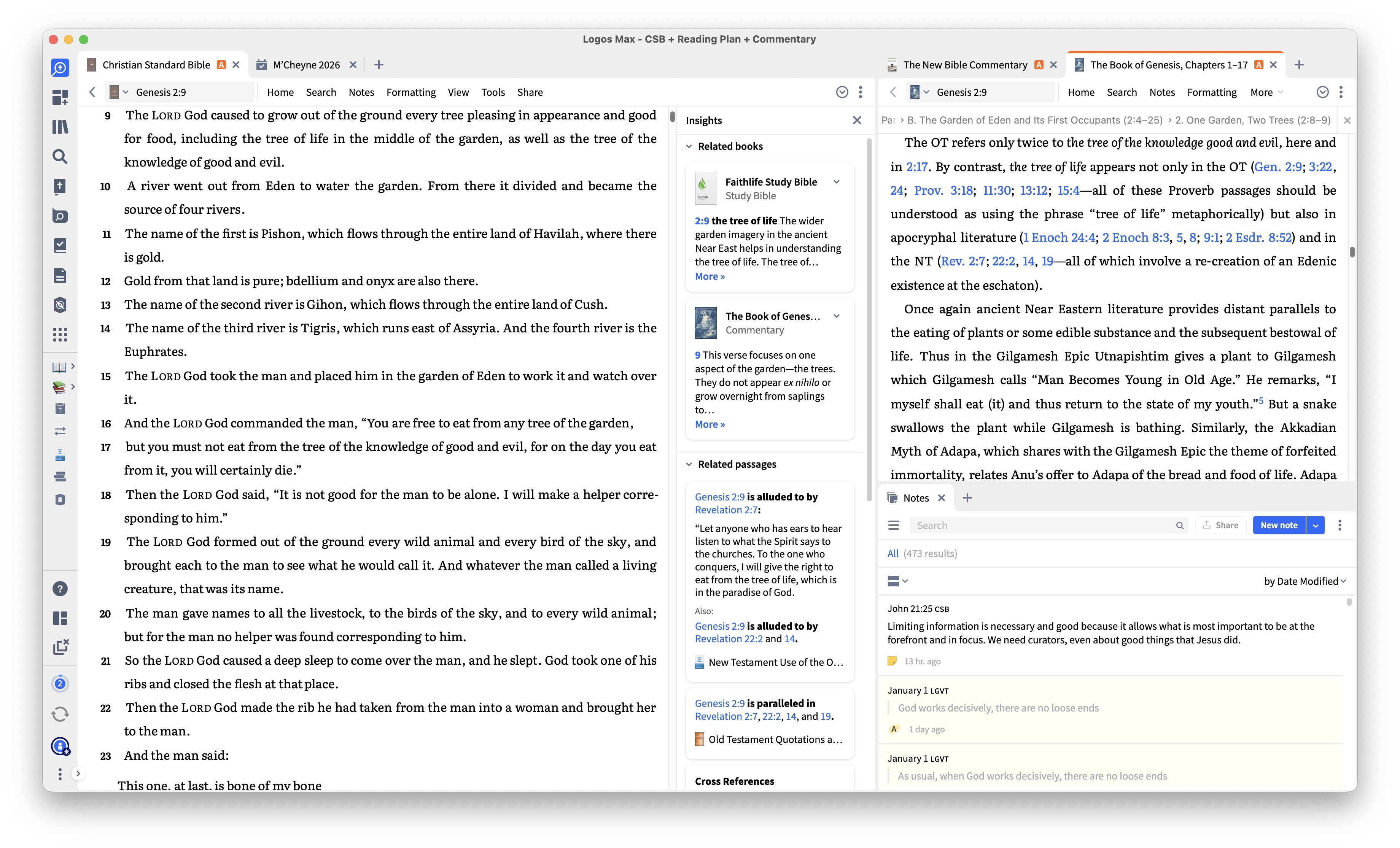
On the left side, I keep the Insights panel of my Bible open as it links to my top study Bible and top commentary for each book under Related Books. After I finish my Bible reading, I open up my daily devotional in full screen.
From this simple layout, I can reference my top commentaries via the Insights panel that expands in any Bible translation, start a search, look up a person, place, or concept, and go into more in-depth study. I like this layout because it has all I need while remaining uncluttered.
Before we go further, let’s establish some of the key tools in Logos.
Key Tools And Features In Logos
There are lots of tools and specific terms in Logos, and learning them will help you know where to start to get where you want to go.
Dashboard - This is the default starting place for Logos. You can customize this screen with your favorite devotionals, books, and layouts. Logos also shows sales and deals here. Smart Search is prominent near the top and you can also start your own kind of study from there with suggested prompts like Personal study, Group Bible study, Write a sermon, or Original language. There are also links to different support articles there. Start here if you are using Logos in different ways for different tasks.
Factbook - This is an overview tool that allows you to look up any passage, person, place, concept, or theme in the Bible. Start here when you know what you want to study and want to see all relevant resources at a glance. This is a core function of Logos that was a primary focus before the AI-enabled tools rolled out.
Layouts - This is how your screen is organized with different tools. They are infinitely customizable and you can tweak things to get them exactly how you want. The best way to start exploring layouts is by testing the default Logos layouts and then customizing for your preferences from there. Layouts are the key to optimizing Logos. There are tons of different tools, and as you build your resource library, you want to be able to have your favorite resources available and organized in a way that makes sense for you. Start here when you already have your favorite screen of tools arranged for specific tasks.
Library - This is where all of your Bibles, books, commentaries, and purchased resources reside. Command+L opens this window at any time. Start here when you want to focus on a single book or resource.
Link Sets - This connects resources, like a Bible and a commentary, so they move together when you scroll. That allows your commentary to always mirror the Bible verse you’re currently reading. Start here for commentaries and other resources linked to specific Bible passages.
Tools - This is where every tool within Logos resides. If you hover over a tool, you’ll see an overview of what it does. Logos is always adding new tools, and the best way to figure out how to use them is by checking out their Learn Logos webinars. I use a few tools regularly, but there are so many that I forget about most of them. A subscription unlocks more tools for you, including AI-powered search and Study Assistant on the Pro and Max subscription plans. Start here when you have a specific Bible study tool or task in mind, like Advanced Timeline for reviewing Biblical history or Sermon Builder for preparing to preach.
Subscriptions vs. Libraries
One learning curve is understanding the difference between a subscription, which enables access to tools versus a library, which gives you access to resources like books, Bible translations, and commentaries. You can think of the subscription as the engine of Logos and the resources as the fuel.
To take the analogy one step further, having less high-octane fuel (high-quality resources) is better than a full tank of low-octane fuel (low-quality resources). I have slowly built my library more piecemeal, so it is full of authors I respect with godly insight without just buying larger libraries at a steeper discount but with more resources I don’t actually want or need. If there’s a library that has all you’re hoping for, it’s a great value and it’s worth browsing the library options here.
If you want access to all of the tools in Logos, you need to have a subscription. The AI-enabled search alone makes a Logos subscription worth the money if you’re really digging into Biblical texts with a desire to reference commentaries, dictionaries, and other resources.
Here’s a breakdown of the subscription tiers and what’s included:
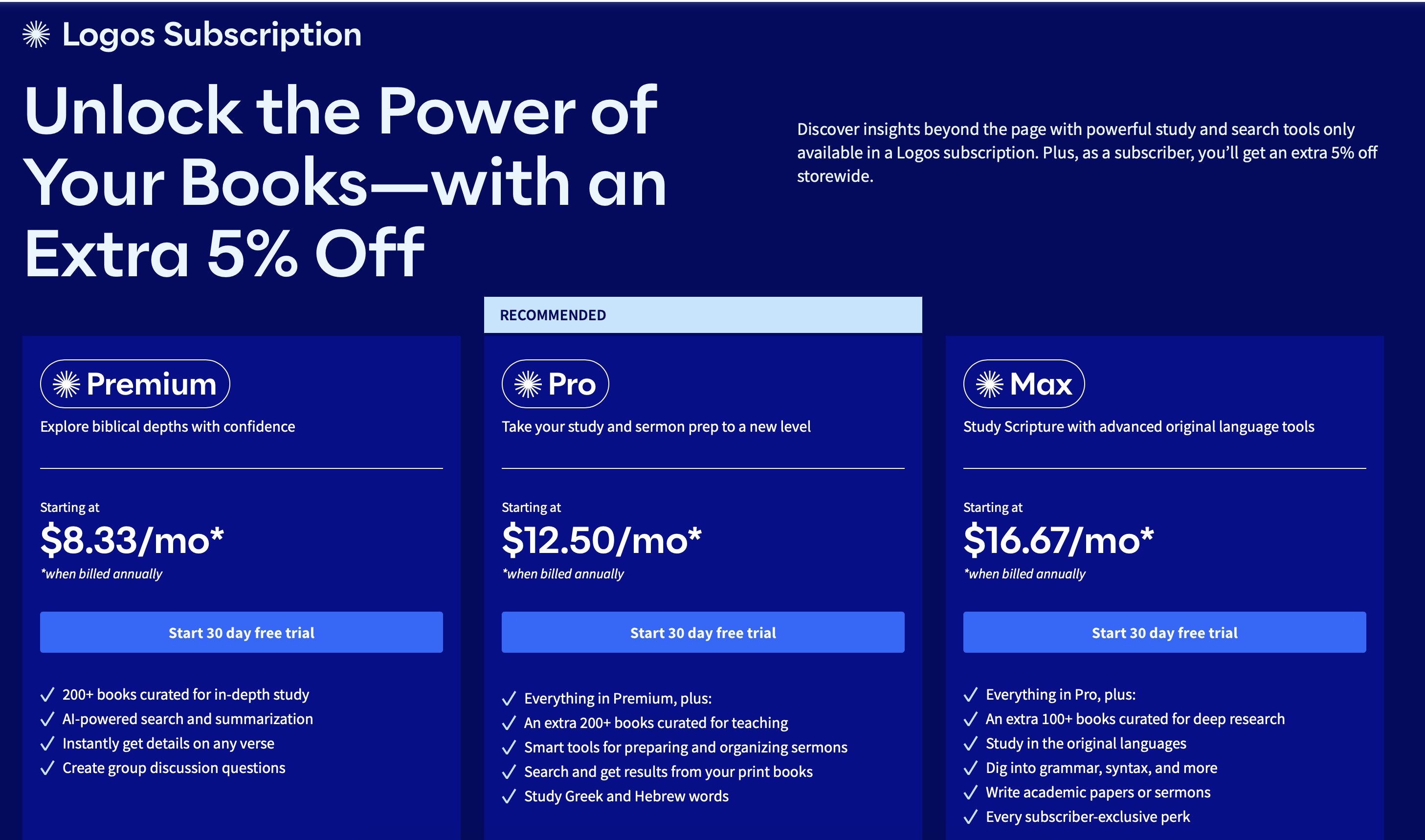
There are three levels of subscriptions: Premium ($8.99 / month), Pro ($12.99 / month) and Max ($16.99 / month). Like most subscriptions, if you pay annually (or for two years upfront) instead of monthly, there’s a greater discount. The best option is to use my affiliate link and take Logos for a 60-day spin and then decide if it’s right for you.
Subscribers also get an additional 5% off books, a 5% credit from all they purchased in a calendar year via a discount code in February, and an extra free book per month.
AI Tools
If you’re going to subscribe, I think Pro is the best option for almost anyone. Premium doesn’t offer integration with your physical library and Max has just a few extra niche, mostly language-focused tools. A subscription enhances Logos tremendously as it gives you access to their new AI-enabled Smart Search. Without Smart Search, you have to use complicated search syntax to do more powerful searches. The AI-enabled Smart Search, on the other hand, allows you to ask questions in natural language to mine the Bible and your library for answers.
Study Assistant is the latest tool built on top of Smart Search. You can follow up in a chat-style discussion after your search results appear. It looks like a standard AI chat, but with Logos resources linked in each response. This is AI done right for serious Bible study. You know exactly what sources are being referenced and you can purchase them via direct links from the chat if you don’t already own them.
Here’s an example of how valuable the new Smart Search has become for me. I wanted to answer the question, “How often does Jesus teach in the temple or a synagogue in comparison to out among people, in villages and towns, and to the masses?” That’s a project that would take hours of careful reading and labeling. But with Logos Smart Search, I can do it in an instant. Logos tags pronouns and connects them to the person, so I can search for Jesus and passages that say “he” in reference to Jesus still appear. That’s not possible without very careful study in a physical text.
This used to require finicky syntax in Logos, but the new Smart Search is simple and natural.
Here’s the search results for that if you’re curious:
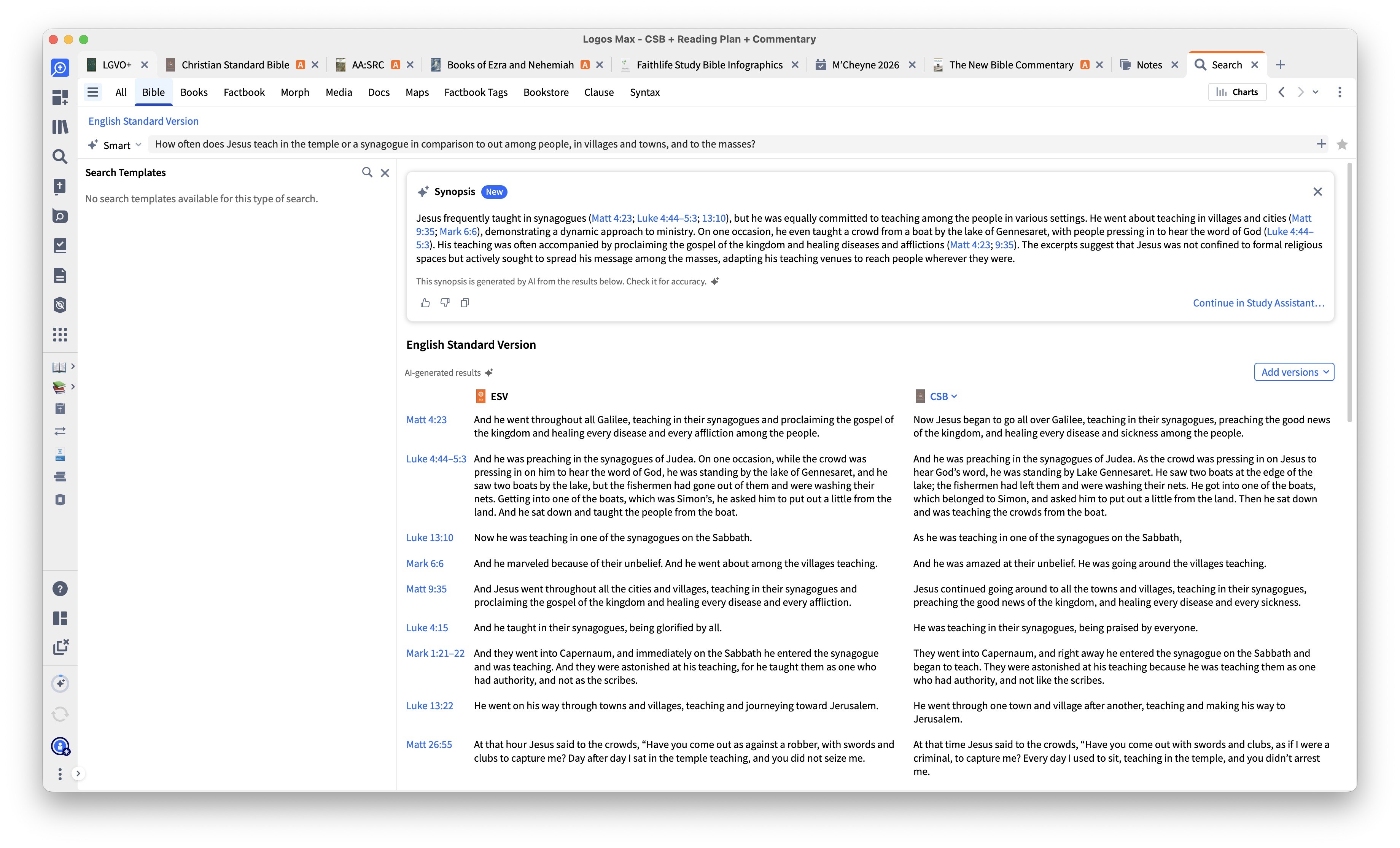
Researching things I couldn’t otherwise without tremendous effort is perhaps the biggest reason a Logos subscription is worth it for me.
If you want to compare all the other specifics of each subscription, check out their subscription page.
Subscriptions also include more resources that you have temporary access to as long as you maintain your subscriptions. With the Logos Legacy Fallback license, after two years of subscribing, you get to keep all the non-AI tools (but not temporary resources) that Logos released in that period even if you end your subscription.
Why Not Regular AI?
As a quick aside, you might be wondering, “Why don’t I just use a normal AI tool to ask these questions instead of subscribing to Logos?” Your sources matter. With a standard AI tool, content is being pulled from anywhere, but Logos allows you to select the resources you want to search, so if you trust your sources you can trust the results. Like many AI tools, the more specific the tool the better it handles the task. So, a standard AI without specific training can’t compete with the model Logos has built.
Building Your Library
I’ve been building my own collection of commentaries that are the best across different series of commentaries. With Logos, it’s normally the cheapest to buy an entire commentary series or set of resources called a library, which can have a specific denominational flair. I decided I’d rather have fewer, high-quality commentaries than entire sets that are often a mixed bag in terms of quality depending on the specific authors for each volume.
When deciding which commentaries to buy, I typically reference bestcommentaries.com and buy one of the top three commentaries for each book. Buying physical or individual digital copies of those commentaries would cost upwards of $30 per book. That’s close to $2,000 for just one commentary per book of the Bible. I’ve spent far less than that to build my library. If you buy collections or libraries from Logos that contain commentaries you want, the cost is just a fraction of the price of physical books.
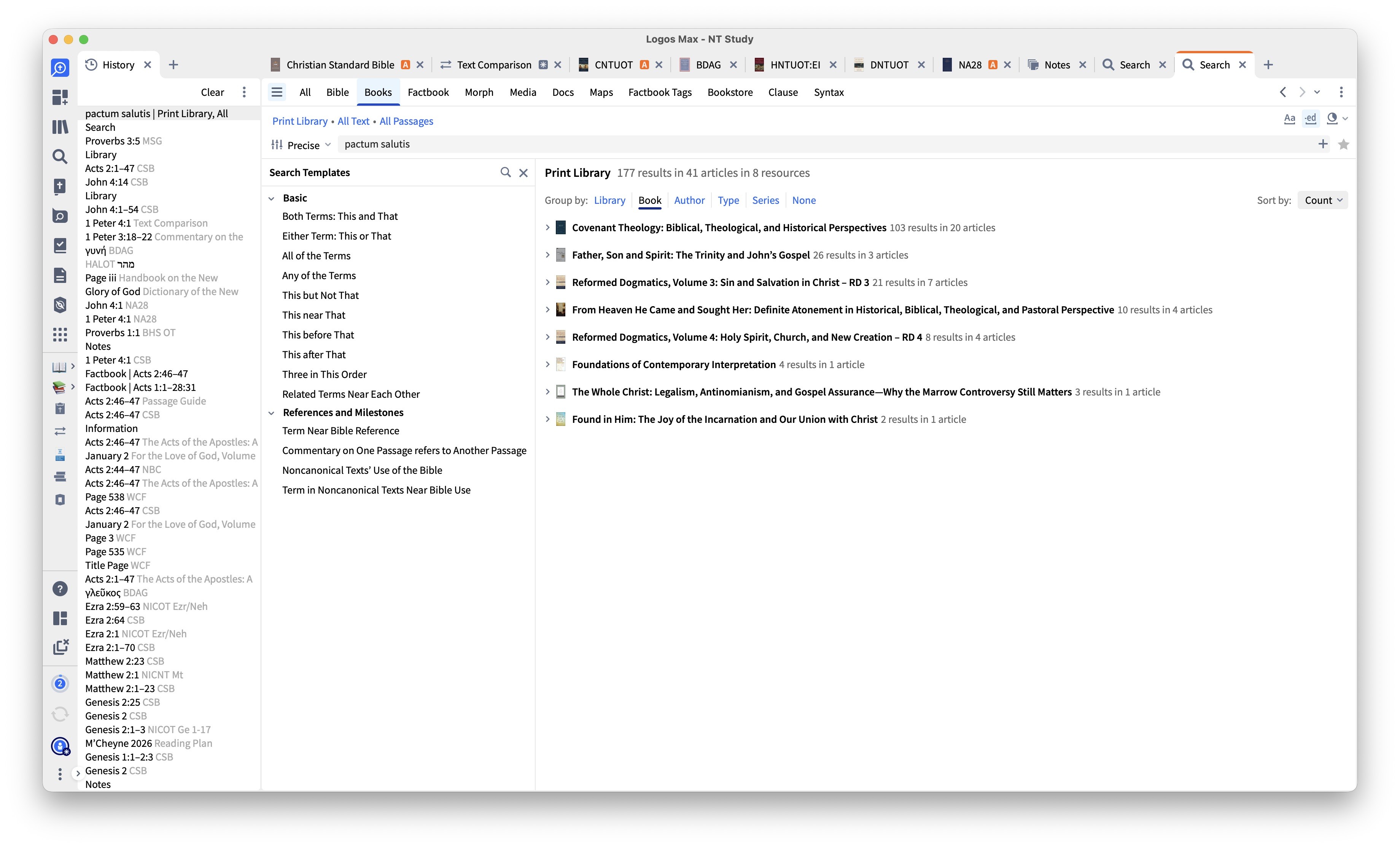
Another favorite feature included with the more expensive Pro and Max subscriptions is being able to add books in your physical library as resources that Logos searches and can refer to. I have hundreds of Kindle and physical books, and I can add those to my library in Logos. Then, let’s say I know I read something about pactum salutis in one of my books, but I can’t remember exactly which book and I definitely don’t know where it was in that book. I can simply select “Physical Library” in my Logos search, type in the term, and Logos will find that exact term in my library and even note what physical page it is on. That’s incredible, and something I haven’t seen available in any other software. When you’re first importing your library, there’s a slick barcode or ISBN scanner in the Logos mobile app that allows you to rifle through your library to scan and import books.
What I like about the subscription model is that if you only occasionally need some of these tools, you can subscribe for a month at a time. This lowers the barrier to entry for people who can’t afford to pay a large amount up front for software they aren’t sure they’ll even use.
Where Do I Start?
I recommend starting with some of their default layouts included in Logos and testing the waters. Those include the following layouts by default:
- Bible and Commentary
- Bible Journaling
- Bible Reading Plan
- Daily Devotional
- Greek Word Study
- Hebrew Word Study
- Lectionary
- Lectionary Reading
- Passage Study
- Proverbs Explorer
- Psalms Explorer
- Search
- Study Bible
- Topic Study
From there you’ll have an idea of the main ways to use Logos. Then you can tweak layouts to fit your needs. Again, Logos is a bit like a tank that you adjust to meet your needs. It’s not nimble, it has more tools than you need, but if you can work within its paradigm nothing compares in terms of Bible software with ongoing development.
I know I’m underutilizing Logos because it offers so much more. But it’s a bit like saying I’m under-utilizing my car because I don’t always drive at top speed. It gets me from point A to point B, and sometimes I discover a new feature that I start to use. After some time learning the ropes and building my library, I can’t imagine not having it.
When I was studying Hebrew, I used the Hebrew Cantillations tool which helped me massively, but now I hardly ever use that tool. Seasons and needs change, but always having the tool (typically via a subscription) is convenient.
Here’s the bare bones I’d recommend to start with:
- Your Bible translation(s) of choice (~$10 each)
- A Study Bible or one-volume Bible commentary (~$20-$30)
- A top commentary for your favorite book of the Bible you’d like to study (~$30)
One of the “Starter” libraries can give you all of those things for much less, and later I’ll share more about how to save money once you commit to Logos. Once you’re committed, it’s best to find a higher-level library that meets your needs such as a Silver or Gold Level. I prefer the Reformed Libraries generally, but it’s worth comparing the different libraries in the tier you’re interested in to find what resources best suit you.
Where Do I Start and Is It For Me?
I think having some AI credits (and thus a subscription at any level) is what really unlocks the power of Logos in 2026. It enables information that otherwise wouldn’t be available to you in the form of summaries of books you own and even some you don’t. If Logos is pulling from a resource you don’t own, it will show a lock next to it and give you an option to buy that resource. That’s a win for you because you get a snippet of information, but also for the author, because it exposes you to books you otherwise may not have heard of and may decide to buy.
TLDR: If you want a way to track Bible reading plans, cross-reference resources like commentaries and dictionaries, build a library that travels with you (and also integrates with your physical library), explore original languages, see multiple translations at a glance, and take advantage of search and Bible research that is nearly impossible with just physical resources, I recommend Logos.
If you…
- only read the Bible without referencing other resources or commentaries
- don’t want to spend money on another subscription
- don’t want to pursue in-depth Bible study with digital tools
- don’t have much of a physical (theological) library and don’t want to invest in building a bit of a digital library then Logos is probably not for you.
Logos is built as a desktop-first software. You can access all resources but not all tools via mobile apps, and it, like all other apps, is limited due to smaller screen real estate. Something I appreciate on mobile that for some reason isn’t available on the desktop is “Follow only” as a link method, so when you scroll on a second, linked resource on a phone or tablet, your place stays on the primary source (so you can stay where you are in your Bible while scrolling through a commentary). On desktop, one workaround is clicking and dragging a resource so it isn’t automatically part of a link set, but the follow only function would be nice to have on desktop.
A Few Quirks and Tips
I’ve found that if something doesn’t work the way I think it should in Logos, it’s probably because I’m using it “wrong,” and working against the grain of how the software was designed. In Logos, there is almost always a best way to do things, and then there are workarounds that will probably leave you frustrated. If the Logos team is pushing a tool (like the Insights panel linked to your top resources or Smart Search) it’s best to use them because the software will continue to grow around those tools by default.
Here are two examples of how I learned to go with the flow of Logos instead of swimming upstream in the way I thought worked best:
- Daily (Calendar/Date-style) Commentaries. These are commentaries like Morning and Evening by Charles Spurgeon that have a daily reading that corresponds with a calendar date. You shouldn’t keep this in a saved view because it won’t update to today’s date that way. Instead, keep it in a sidebar collection. Then when you click on it it jumps right to today’s date.
- Commentaries specific to each book of the Bible. You can’t have a saved view with a specific commentary for each book, but if you prioritize your books (more info on that in just a bit), then the Insights panel will highlight your top commentary under your top study Bible. If you click on that commentary when you’re reading, it will automatically link and follow along when you scroll up and down in the Bible. If you drag the commentary, it will be independent and you can scroll around as much as you like without driving your commentary.
If you want greater efficiency, you can set up your own shortcuts. My main shortcut (Command-1) is to turn everything into a single, full-screen view. You can also link resources to these shortcuts to open with a keystroke.
For my daily reading, I like a clean, minimalistic setup for the Bible text so I turn off all of cross references footnotes and links. If you want to make Logos easier on the eyes, here are the settings I like:
- Turn off all cross references, headings, and text links from the Formatting → Reformat toolbar.
- In the same toolbar you can display the text as one verse per line for better spacing and readability.
- I recommend the font Literata (You can set any font installed on your computer as the default for the desktop version of Logos via the main Preferences → Text Display setting).
I still don’t have a solution for the general clutter of Logos, but because the software is feature-rich, there’s toolbars, tabs, and shortcuts everywhere (all of which can be minimized to a degree). At the same time, it’s like being a pilot and getting frustrated with all of the instruments.
Take the time to organize your library and set preferred books. This is a hidden but critical part of optimizing Logos. Here’s an article that explains exactly how to prioritize books.. I have the New Bible Commentary as my “default” commentary, and any commentary that is better and more book-specific gets placed above that, and anything that isn’t as good stays ranked below it, so whenever I open a book and click on commentaries for that book, I know that my preferred commentaries are above that baseline.
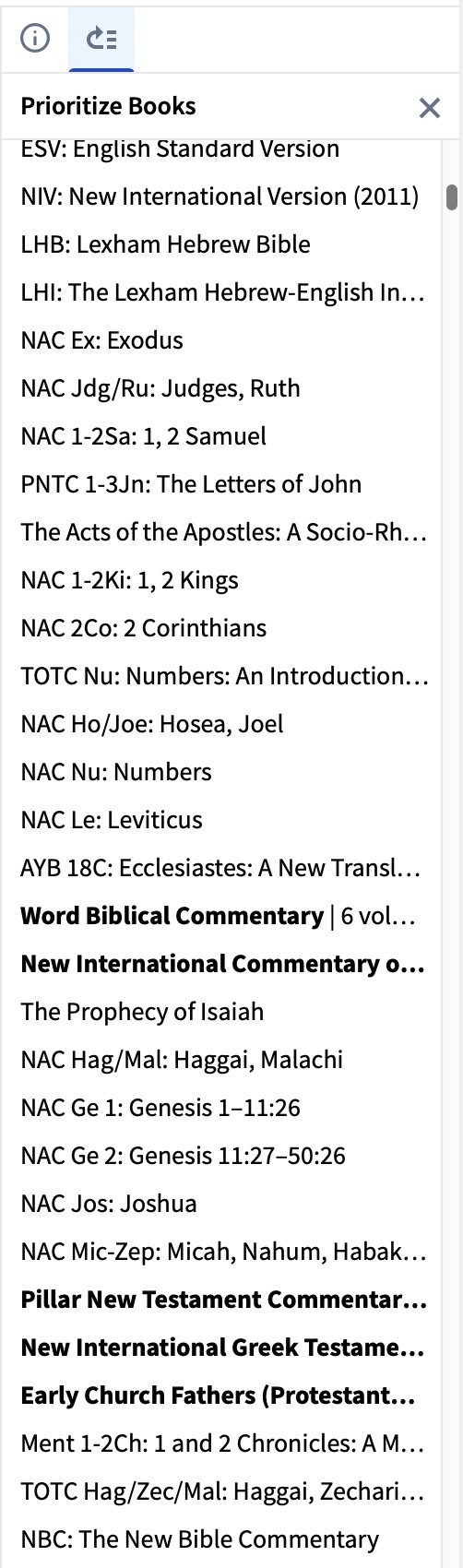
The process of doing this is a hassle, but it’s a necessary step. This is one of the main areas I hope Logos improves in future updates.
I’m not interested in the Mobile Education courses. Lots of packages include these courses. If you want to take a course, it’s a nice bonus, but if you don’t, I think it is just a way to make the packages (seem) more valuable.
I’m not an expert, but I’m continuing to dive into the Bible through Logos, and I’m happy to help you think through if it might be right for you.
I like to reference the timeline features especially when I’m in the Old Testament to better understand the context of what was happening when books were written.
Learn Logos
The webinars are tremendously helpful, and picking a few that are most interesting for you will help you get even more out of Logos.
Here you can browse a list of previous webinars. Under Experience Level, you can choose Getting Started or Beginner to get a taste of the most key functions of the software and where to begin.
Start Slow To Save
You need to have some resources to get the most out of Logos, but there is no rush. There will always be another sale. Logos resources are constantly going on sale and cycle throughout the year with huge sales for March Madness in the spring, and Black Friday in the fall, and lots in between. They also give away four books a month if you’re a subscriber (or three if you don’t subscribe) using these links:
- https://logos.com/free-book (twice per month - one book from 1-15th of the month, another from 15th to end of month)
- https://logos.com/free-book/subscriber (subscriber only)
- https://www.logos.com/another-free-book (Roman Catholic resource)
If you find resources you like, add them to your wishlist and you’ll be notified by email when they go on sale.
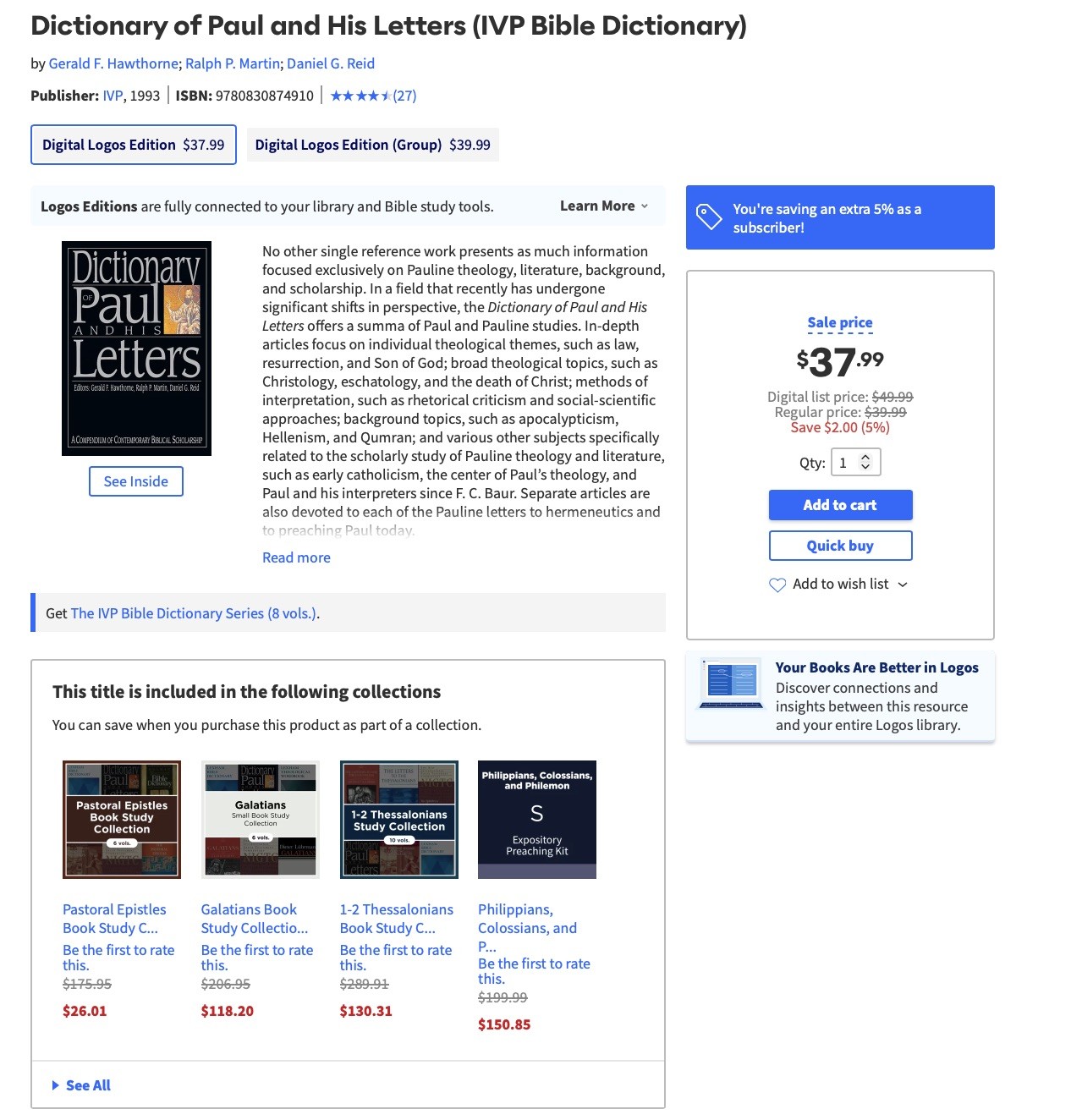
Also, before you buy anything, always look for “This title is included in the following collections” – sometimes you can get multiple books and resources for less than the price of the resource on its own. Here’s an example. This book is $37.99 but you can buy it in a collection with other books included for only $26.01. Even if you don’t want the other books, you can buy this book for less in a collection.
There are plenty of things you can do with a single commentary, Bible dictionary, and a few preferred Bible translations, and you can do all of that for anywhere from $20-$100 or with a simple Starter Library (ideally of the denomination or focus you’ll buy a larger library of later, so you get better dynamic pricing for the resources you’ve already purchased).
Patience is a virtue. Start with what you need and wait for the rest to go on sale and for almost all resources, they will go on sale at some point.
Logos also offers dynamic pricing, so if you own a few commentaries from a set and want to purchase the whole set, they give you a discount based on the commentaries you already own.
Other Advanced Tools
I’m approaching 4,000 words and I’m only scratching the surface of all you can do with Logos. I haven’t gotten into original language tools, which Logos excels at, as well as visual filters, and other AI tools that I don’t personally use in Logos (like Bible Study Builder and Sermon Assistant), because the point of me studying the Bible, beyond my own growth, is to be able to help others, not to let AI haphazardly do that for me.
Final Word
Hopefully you can imagine how it might work (or not!) for you and if it’s worth the ongoing time and financial investment to build a library on this platform.
Logos is actively developed and has thousands of resources available that regularly go on sale.
Logos is worth it if you’re serious about Bible study, not just Bible reading. If you rarely reference anything other than the Bible, it’s not the right tool for you. Buy a really nice leather-bound Bible instead.
If you want to be able to search a digital and physical library, dig into original language tools, amass a digital library that’s always with you, and go further, faster in your Bible study, I recommend it to you.
Again, here’s a link to try Logos for free for 60 days to kick the tires and see if it’s the right tool for you.
I’d love to hear how you’re using Logos or what questions you still have if you’re on the fence.